
How can we help?
Quick answers for PTO boards, parents, and volunteers.
Results
Try fewer words, like “password” or “signup”, or browse the topics.
Didn’t find it?
Email us your question and a real person will reply, usually within one business day.
Browse by topic
- For parents and volunteersSigning up for a spot, changing it, and finding your link.13 answers
- Getting startedSet up your PTO and bring your board and spreadsheets along.7 answers
- Events and tasksPlan an event, divide up the work, and reuse it next year.11 answers
- Running volunteer signupsFor boards: create spots, share the link, and message volunteers.8 answers
- Shopping, budget, and receiptsKeep track of what to buy, what’s spent, and who’s owed.8 answers
- Calendar and meetingsShare dates with your board, and run better meetings.4 answers
- Your boardAdd people, choose what they can do, and keep your directory.7 answers
- Home and My StuffMake the app yours and find your own to-do list.5 answers
- NotificationsChoose what you hear about, and fix missing alerts.2 answers
- Plans and billingThe free trial, what it costs, and how to subscribe or cancel.6 answers
- Your account and dataPasswords, settings, and your PTO’s information.6 answers
- TroubleshootingQuick fixes when something isn’t working.5 answers
For parents and volunteers
Signing up for a spot, changing it, and finding your link.
Do I need an account or the app to volunteer?
No. You don’t need an account, a password, or the app, and it’s free. All you need is the signup link your PTO shared, in a text, an email, or on Facebook. It opens in your browser on any phone or computer.
How do I sign up for a spot?
Open the link from your PTO and choose a spot under Pick a spot. Enter your name and email (a phone number is optional), then choose Sign me up. You’ll see “You’re signed up,” and we’ll email you a confirmation with a link to your volunteer page.
Can I sign up for more than one spot, or sign up my spouse?
Yes. The form takes one spot at a time, so open the link and sign up again for each one, using the same email. For someone else, use their name and email, so the confirmation and reminder go to them.
The spot I want is full
Full spots can’t be chosen, and there’s no waitlist. Pick another spot, or check back, because a spot reopens if someone cancels. You can also ask your PTO whether they need more help.
I signed up but didn’t get an email
Check your spam or promotions folder for an email from PineBoard, and make sure you typed your address correctly. If you saw “You’re signed up” on the page, your spot is saved, even if the email hasn’t arrived.
Still nothing? Ask someone on your PTO’s board. They can see your name on the event.
How do I cancel or change my spot?
Open your volunteer page from the link in your confirmation email. Next to your shift, choose Can’t make it, then confirm. Your spot reopens for someone else.
To switch shifts, cancel the old one, then sign up for the new one on the signup page. To fix your name or phone number, choose Edit on your volunteer page. To change your email, contact your PTO.
I lost my link or deleted the email
Search your inbox for PineBoard: your link is in every email about your shift, including reminders and announcements.
Can’t find one? Open the signup link again, choose the same spot, and enter the same email. We’ll email your link again (once a day at most). This won’t sign you up twice. If that spot now shows Full, ask your PTO.
What’s on my volunteer page?
Your upcoming shifts, plus any tasks or shopping your PTO has asked you to help with. You can add a shift to your calendar (Apple, Google, or Outlook), cancel it, or tick off shopping items. There’s nothing to sign in to. Your link is personal, so please don’t share it.
What emails will I get? Can I stop them?
You’ll get a confirmation when you sign up and a reminder the day before your shift. You’ll also hear from us if an event’s date, time, or place changes, or if your PTO asks you to help with a task or shopping. Your PTO may also send announcements about events you’ve signed up for.
To stop announcements, choose Unsubscribe at the bottom of any announcement, or Stop announcements under Emails on your volunteer page. You’ll still get confirmations, reminders, and changes to your shifts. Canceling a shift stops the emails about it. To be removed from a PTO’s list altogether, ask your PTO or email us.
Who can see my name and phone number?
Your PTO’s board members can see your name, email, and phone number so they can organize the event. Other parents can’t: the signup page shows only how many spots are left, never who took them. We never sell your information or show ads. See the Privacy Policy.
The link says the page can’t be found, or the event has wrapped up
“We couldn’t find that page” means the link is incomplete, the event was removed, or it’s an old volunteer-page link. Personal links stop working a while after your last shift, and work again once you sign up for something new. “This event has wrapped up” means the event is over.
Ask your PTO for the current link. “Spots haven’t been posted yet” means they’re still setting up, so check back soon.
I can’t sign in to PineBoard
If you’re a parent or volunteer, you don’t have a login, and you don’t need one. Just use your PTO’s signup link or the link in your confirmation email. Password resets won’t arrive, because there’s no account to reset.
Please don’t choose Create your board: that sets up a new, separate PTO, and won’t connect you to your school’s.
Board members, see I forgot my password.
I have a question about the event itself
Your PTO runs the event, so they’re the best people to ask. Their contact is at the bottom of your volunteer page. Replies to PineBoard emails aren’t read, and we don’t have event details.
Getting started
Set up your PTO and bring your board and spreadsheets along.
What is PineBoard?Video
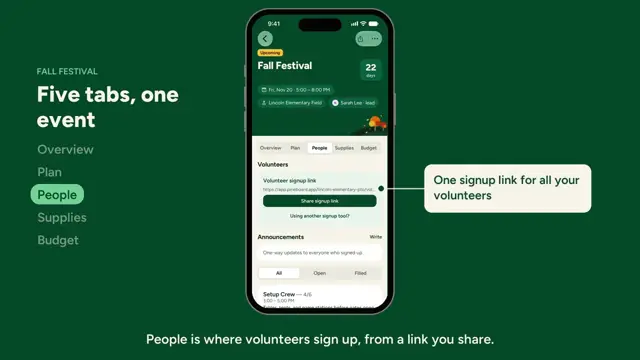
A shared place for your PTO to plan events, divide up the work, sign up volunteers, and track shopping and budgets. Your board uses the app or website, and parents sign up for spots from a link. It’s built for parent-teacher organizations and works for booster clubs and other volunteer groups too.
 1:53
How do I set up our PTO?Video
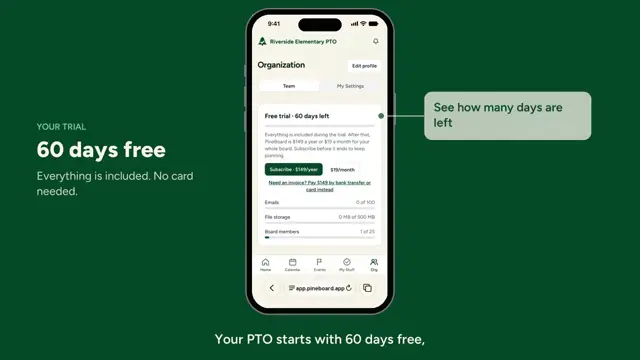
Go to app.pineboard.app/signup on any computer or phone. Enter your PTO’s name, your school, and your time zone, and create your login. Confirm your email from the link we send, then sign in. You’re the administrator, and your 60-day free trial starts right away. On Android you can also start from the app, with Create your board. On iPhone and iPad, set up on the website first, then sign in with the same email.
 1:23
What should we do first?Video
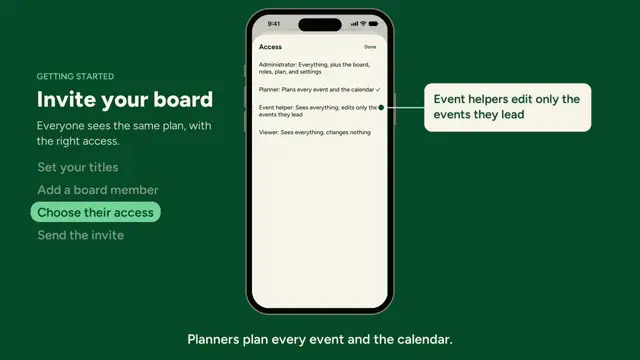
- Invite your board. In the app: Org → Leadership team → + Add. On the website: Organization → Add a board member.
- Add key dates like board meetings and school days off to the Calendar.
- Plan your next event with the + button, then share its volunteer signup link.
 1:14
How do I join a PTO that’s already set up?
Ask an administrator to invite you. Open the invitation, create your login there with the same email address, and you’re in. Don’t create a new PTO yourself: that starts a separate organization. Just volunteering? You don’t need to join. See Do I need an account?
Can we bring in what we already keep in spreadsheets?
Yes. On the website, an administrator goes to Organization → My Settings → Your data → Import and chooses Download the template. It’s a zip with a spreadsheet for each kind of thing: board members, events, tasks, volunteer spots, calendar dates, and vendors and donors. Fill in the ones you need in Excel, Numbers, or Google Sheets, save them as CSV, and choose them all on the same page (or the zip). You’ll see everything that will be added, and any rows that need fixing, before anything changes.
Board members in the spreadsheet get an email invite. Tasks and volunteer spots go on the event with the same name, and leads and task owners are matched to board members by name. Anything already in PineBoard is skipped, so it’s fine to fix a file and import it again. An Export everything zip can be imported the same way.
Can we use it on more than one device?
Yes. Sign in with the same email on your iPhone, iPad, Android phone or tablet, and at app.pineboard.app. Everything stays in sync. If something looks out of date in the app, pull down to refresh.
Where do I get the app?
Get PineBoard on the App Store for iPhone and iPad, or on Google Play for Android phones and tablets. Volunteers never need an app.
Events and tasks
Plan an event, divide up the work, and reuse it next year.
How do I plan an event?Video
Tap the + button and choose PTO Event (on the website, Events → New event). PineBoard asks one thing at a time: the name, date, place, lead, budget, and how it should look. The event appears on your calendar by itself.
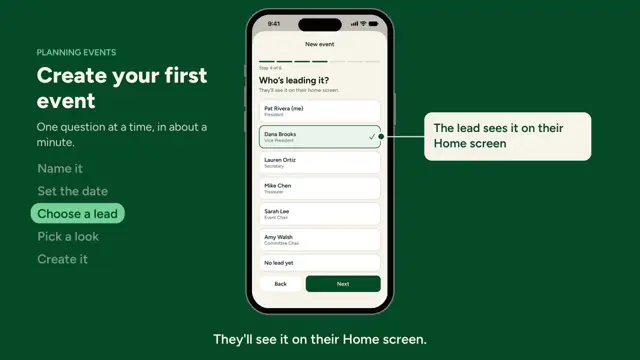 0:58
What are the tabs on an event for?Video
Overview has the details, notes, and attachments. Plan has the tasks. People has volunteers, vendors, and co-leads. Supplies has the shopping list. Budget tracks planned costs, receipts, and any money raised.
1:53How do I add and assign tasks?Video
On the Plan tab, group the work into areas like Food or Setup, then choose Add a task. Give each task a due date and an owner, who gets a notification. Tap or click a task to change it, and tick the circle when it’s done. The Mine, Open, and Done filters help you find things.
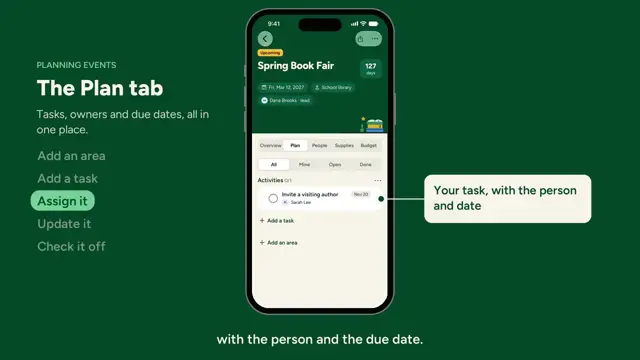 0:43
Can we reuse last year’s event?Video
Yes. Open the event, then ⋯ → Plan again, and pick a new date. Its tasks, volunteer spots, shopping list, budget, and vendors are copied, with dates moved to match and progress reset. Last year’s signups and receipts stay behind. In the app you can also choose + → Repeat a past event.
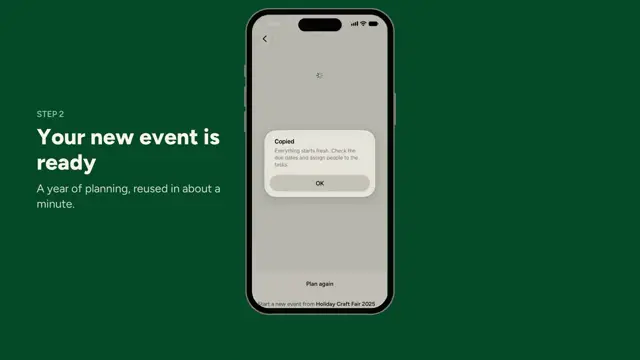 1:10
Can an event have more than one lead?
Yes. On the event’s People tab, go to Co-leads and add someone. An Event helper can edit any event they lead or co-lead.
Can an event run for more than one day?
Yes, up to 60 days. Fill in Last day on the event, and give volunteer spots their own dates.
Can I change how an event looks?Video
Yes. Choose an illustration, a gradient, or plain when you create the event, or change it under Appearance in Edit event. It shows on the event for your board, not on the volunteer signup page.
0:58What do Upcoming, In progress, and Completed mean?
An event’s status updates itself from its date: Upcoming before the day, In progress on the day, and Completed afterwards. The day after, the lead and the board members who had tasks get a reminder to write notes about what to change next year.
How do I attach a contract or flyer?
On the event’s Overview, scroll to Notes → Attachments. In the app choose + Attach a file or photo; on the website pick the file, then choose Attach. Photos, PDFs, Office files, and text files up to 10 MB each are supported, and only your board can see them.
How do I print an event plan?
Open the event, then ⋯ → Print. Choose which sections to include, then print or save it as a PDF.
How do I change or delete an event?
Open the event and choose Edit (⋯ → Edit event in the app). Delete is at the bottom of the edit form. Deleting removes the whole plan, volunteer list, and shopping list, so you don’t need to delete past events: they stay on file for next year.
Running volunteer signups
For boards: create spots, share the link, and message volunteers.
How do I set up volunteer spots?
On the event’s People tab, choose Add a volunteer spot. Give it a name like Setup Crew, how many people you need, the date and times, and what it involves. Anything you put in Instructions for volunteers goes out with their confirmation and reminder.
Can I add someone who signed up in person?
Yes, if the spot has room. On their spot, choose + Add someone and enter their name and email. They get the same confirmation and reminder.
What happens when a volunteer cancels?
The spot reopens on the signup page and their name leaves the People tab. We don’t email the board about it, so check the People tab as the event gets close. Board members can also remove someone from a spot; the volunteer isn’t told automatically, so let them know yourself.
Can a volunteer take on a task?
Yes. Under their name on the People tab, choose Assign a task. It shows with their name on the People and Plan tabs, and on their volunteer page.
How do we message all our volunteers?
On the People tab, choose Announcements → Write in the app, or Write an announcement on the website. This appears once someone has signed up. Send it to everyone who signed up or just one spot, and include the board if you like. You’ll review it before it sends. Each event can send up to 5 announcements in 24 hours.
Volunteers can unsubscribe from announcements. They show “Opted out of announcements” on the People tab, and the review tells you how many won’t get it, so reach them another way if it matters. They still get confirmations and reminders.
Can we email every family at our school?
No, PineBoard isn’t a newsletter tool. Announcements go to the volunteers who signed up for an event, and to your board if you choose. Keep using your usual channels for school-wide news, and share your signup links there.
We already use another signup tool. Can we keep it?
Yes. On the People tab, choose Using another signup tool? and enter its address. Your PineBoard signup page then sends parents to that tool with a button, and PineBoard’s confirmations and reminders don’t apply to those signups.
Shopping, budget, and receipts
Keep track of what to buy, what’s spent, and who’s owed.
How does the shopping list work?Video
Every event has one on its Supplies tab. Add what you need with the store, quantity, who’s buying, and an estimated cost. The list groups items by store. Tick an item when it’s bought; the person buying sees their items in My Stuff. At the store, the Needed filter shows only what’s left.
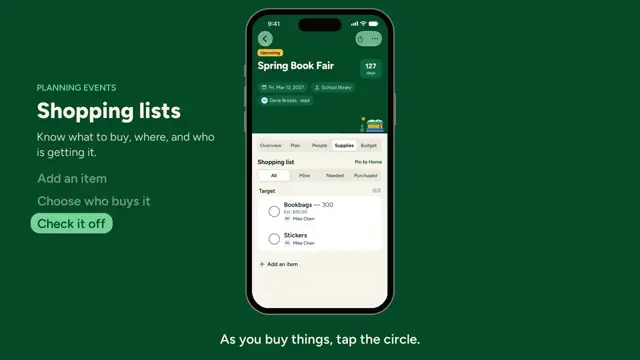 0:47
Can I keep my own shopping list?
Yes. My Stuff → Shopping has a list only you can see, and you can move anything on it to an event with Add to an event.
How do I track the budget?Video
Use the event’s Budget tab. Under Planned, add what you expect to buy; the total becomes the event’s budget. Summary shows planned, actual, and what’s left, and History logs every change.
 0:49
How do I track a fundraiser?Video
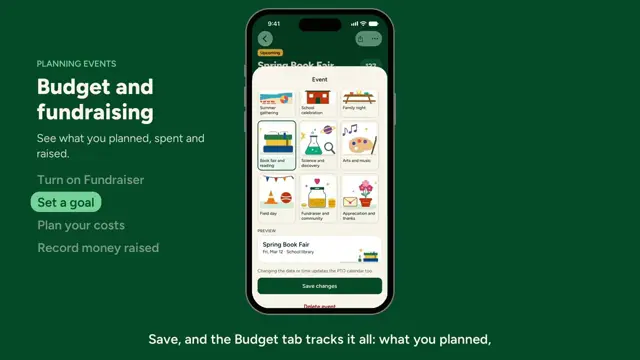
Choose Edit event, turn on Fundraiser, and set a goal measured by Net (money raised minus expenses) or Gross (everything raised). Then record what comes in under Money raised on the Budget tab, and the goal updates right away.
0:49How do I add a receipt?
On the event’s Budget tab, under Expenses, choose + Add (Add a receipt on the website). Take a photo or attach a PDF, enter the amount and store, and choose who paid. If a board member paid, it shows as Owed until you mark them reimbursed.
I have receipts but no event to put them on yet
Add them to My Stuff → Receipts with Add a receipt. They’re private until you choose an event, and then whoever manages that event can record them. The filters show what’s unassigned and what hasn’t been reimbursed.
Can parents pay, buy tickets, or donate through PineBoard?
No. PineBoard doesn’t collect money. It tracks your budget, receipts, reimbursements, and the money you raise elsewhere, but it isn’t accounting software, so your treasurer keeps your official books.
Who can see the budget?
Administrators, Planners, Viewers, and that event’s leads. Volunteers never see it.
Calendar and meetings
Share dates with your board, and run better meetings.
What can go on the calendar?
PTO events, board meetings, school events, deadlines, fundraisers, volunteer events, reminders, and anything else. Tap + and choose PTO Board Meeting or Calendar Item. PTO events you plan appear on the calendar by themselves.
How do I see PTO dates in my own calendar?
In the app, tap your photo on Home to open You, then Calendar → Add to my calendar. On the website, go to Organization → My Settings → Calendar → Subscribe. Your calendar then stays up to date by itself.
To add just one event, open it and choose Add to my calendar from the ⋯ menu.
I shared my calendar link by mistake
Choose Reset my calendar link in the same place. The old link stops working; add the new one to your calendar.
How do I make a meeting agenda?
Tap + and choose PTO Board Meeting. On the meeting, choose Edit agenda to add sections and items. Share agenda gives you a link for the board only, or for anyone with the link, which stops working 30 days after the meeting. Add a Video link and everyone gets a Join online button.
Your board
Add people, choose what they can do, and keep your directory.
How do I add someone to our board?Video
Administrators, in the app: Org → Leadership team → + Add, then Add & share invite. On the website: Organization → Add a board member → Add & send invite. We email them an invitation, and you can send the link yourself too. Invitations expire after 30 days; if one does, send a new one under Waiting to join.
1:14What can each role do?Video
- Administrator: everything, including people, billing, and import and export.
- Planner: plans every event and the calendar.
- Event helper: sees everything, but edits only the events they lead.
- Viewer: sees everything and changes nothing.
A role sets what someone can do. Their title, like Treasurer, is just a name.
1:14How do I change someone’s role or remove them?
Administrators tap the person on the Org tab (on the website, Edit next to their name). Change their title or Access, or choose Remove from leadership. Their unfinished tasks and shopping, and the upcoming events they lead, are unassigned. Their name stays on past work.
Our board changes every year. What do we do?
Invite the new members first, make sure at least one is an Administrator, then remove the people who have left. Everything stays with your PTO, not with a person, so past events, notes, and budgets are there for the new board.
Can we use our own board titles?Video
Yes. In the app: Org → Leadership team → Titles. On the website: Organization → Edit profile → Board titles.
1:14How do I keep track of vendors and donors?
Organization → Vendors & donors keeps your directory. On an event’s People tab, add the vendors and donors helping with it and a note about what they’re providing.
How do I change our PTO’s name or details?
On the website, an administrator goes to Organization → Edit profile.
Home and My Stuff
Make the app yours and find your own to-do list.
Where do I see just my own work?
My Stuff shows everything assigned to you across events. Use its tabs to see your tasks, shopping, volunteer shifts, and receipts.
Can I arrange my Home screen?Video
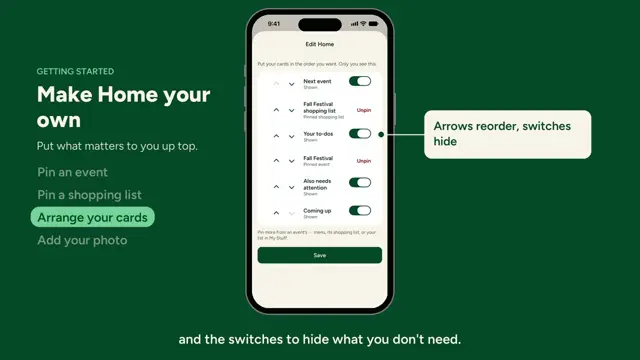
Yes. Choose Edit Home (at the bottom of Home in the app, at the top on the website). Reorder your cards and hide what you don’t need. Only you see your layout.
 1:03
How do I pin something to Home?Video
In the app, open an event and choose ⋯ → Pin to Home, or Pin to Home on its Supplies tab for the shopping list. On the website, choose Pin event to Home. Pins are private to you.
1:03How do I search for something in the app?
Tap the magnifier on Home to search events, tasks, shopping items, and vendors.
How do I add my photo?Video
In the app, tap your initials on Home to open You, then add a photo. It can be up to 1 MB.
1:03Notifications
Choose what you hear about, and fix missing alerts.
What does PineBoard notify me about?
New tasks and shopping assigned to you, tasks due tomorrow, being named an event’s lead, changes to an event’s date or place, events coming up in 3 days, notes after an event, receipts, your own volunteer shifts, and announcements. Choose push, email, or both for each. In the app, tap your photo on Home, then You → Notification Settings. On the website, go to Organization → My Settings → Notifications.
I’m not getting notifications
Check Notification Settings (see What does PineBoard notify me about?) and make sure notifications for PineBoard are allowed in your phone’s Settings. Emails come from PineBoard, so check your spam or promotions folder and add us to your contacts.
Plans and billing
The free trial, what it costs, and how to subscribe or cancel.
What does PineBoard cost?Video
A new PTO gets a free 60-day trial of everything, with no payment details needed. After that, PineBoard is $149 a year or $19 a month per organization, for your whole board. Volunteers never pay. Sales tax is added where it applies, and tax-exempt PTOs can email us their exemption certificate.
1:23How do we subscribe?
An administrator signs in at app.pineboard.app and goes to Organization. Your plan is the first card there. Choose yearly or monthly and pay by card. If your PTO needs an invoice for the yearly plan, choose Need an invoice? instead: we email one you can pay by bank transfer or card within 30 days. The plan covers your whole board.
How do I update our card, get receipts, or cancel?
On the website, go to Organization and choose Manage billing on your plan card. You can update the payment method and billing address, download invoices and receipts, or cancel. A canceled plan keeps working until the end of the period you’ve paid for. To switch between yearly and monthly, email us.
Can we get a refund?
If you ask within 14 days of being charged for a yearly plan, we’ll refund that charge in full. Otherwise payments aren’t refundable, and canceling stops future charges. See the Terms of Service for details.
What happens if the trial ends or we stop paying?
Your PTO becomes read-only. Nothing is deleted: your board can still see everything, administrators can export it, and volunteers can still sign up for events already on the calendar. Subscribe at any time and everything works again right away. A PTO that stays read-only for 12 months is deleted; we email administrators 30 days and 7 days before, with a link to export everything.
Are there any limits?
Fair-use limits keep PineBoard fast for everyone, and most PTOs never get near them. A yearly plan includes up to 50 board members, 300 events a year, 100 volunteer spots per event, 5 GB of file storage, and 10,000 emails a year. A monthly plan includes about 830 emails every 30 days.
The free trial includes 25 board members, 100 events, 500 MB of storage, and 2,000 emails, with 100 of those in the first 7 days. Administrators can see usage on the plan card under Organization. Need more? Email us.
Your account and data
Passwords, settings, and your PTO’s information.
I forgot my password
Choose Forgot password? on the sign-in screen, in the app or on the website. We’ll email you a code; enter it with a new password and you’re back in. No code? Only board members have logins, so check you’re using the email your PTO invited.
How do I change my email address?
Email us from your current address and tell us the new one, and we’ll change your sign-in for you. An administrator can also change where your invites and notifications go by editing you on the board.
Can I use dark mode or larger text?
Yes. Choose Automatic, Light, or Dark under Appearance: in the app, tap your photo on Home to open You; on the website, go to Organization → My Settings. The app also follows your device’s text size. On iPhone or iPad, change it in Settings → Display & Brightness → Text Size. On Android, it’s in Settings → Display → Font size (some phones call it “Font size and style”).
How do we download all our data?
On the website, an administrator goes to Organization → My Settings → Your data → Export everything. You get one zip with spreadsheets of your events, tasks, volunteers, shopping, receipts, calendar, people, and vendors, plus every uploaded file. It works any time, including while read-only.
How do I delete my account?
In the app, tap your photo on Home to open You, and find Delete my account at the bottom. On the website, it’s under Organization → My Settings → Your account. If you’re the only administrator, you’ll first choose a new one. If you’re your PTO’s last board member, this deletes the PTO and everything in it and cancels its subscription, so you’ll be asked to type its name to confirm. Export first if you want a copy.
Who can see our information?
Your plans, budgets, and files are for your PTO’s board members only. Anyone with a signup link can see that event’s details and spots, but not who signed up. We never sell your data or show ads. See the Privacy Policy for details.
Troubleshooting
Quick fixes when something isn’t working.
I didn’t get the email to confirm my account
Check your spam or promotions folder for an email from PineBoard. Try signing in: if you’re told to confirm first, wait a minute and check again. Still nothing? Email us from that address.
My invitation or link says it has expired
Board invitations last 30 days and work once. Ask an administrator to send a new one. If you already set up your login, just sign in. Volunteers, see The link says the page can’t be found.
It says PineBoard is read-only
Your PTO’s trial or subscription has ended, so changes can’t be saved. Everything is still there to see and export. An administrator can subscribe from the plan card under Organization; see Plans and billing. If you see “You have view-only access,” your role is Viewer: ask an administrator to change it.
A file won’t upload
Files can be up to 10 MB each: photos, PDFs, and Office documents. Profile photos can be up to 1 MB. A big photo can be shared at a smaller size, or saved as a PDF.
Something looks out of date
Pull down to refresh in the app, or reload the page on the website. If it still looks wrong, sign out and back in.
Still stuck?
Email support@pineboard.app with your PTO’s name and what you were trying to do. A real person will reply, usually within one business day. Found a bug? Tell us what you tapped and what you expected, and include a screenshot if you can.
Prefer to watch? All our how-to videos are on YouTube.